
Browser V2
OpenCode plugin that integrates Browser MCP for browser automation
0
370
38 in 7 days
35.4
Multi-signal model
14 days ago
2026-09-20
Install and configure
opencode.jsonWrites to this project's opencode.json — applies to this repository only.
opencode.json
{
  "$schema": "https://opencode.ai/config.json",
  "plugin": ["opencode-browser-v2@2.0.1"]
}
Writes to ~/.config/opencode/opencode.json — applies to every project.
~/.config/opencode/opencode.json
{
  "$schema": "https://opencode.ai/config.json",
  "plugin": ["opencode-browser-v2@2.0.1"]
}
If you want to modify the plugin locally, install it into the project and reference the local path.
shell
pnpm add -D opencode-browser-v2OpenCode loads npm dependencies through its embedded runtime on startup and caches them locally — no manual global install needed.
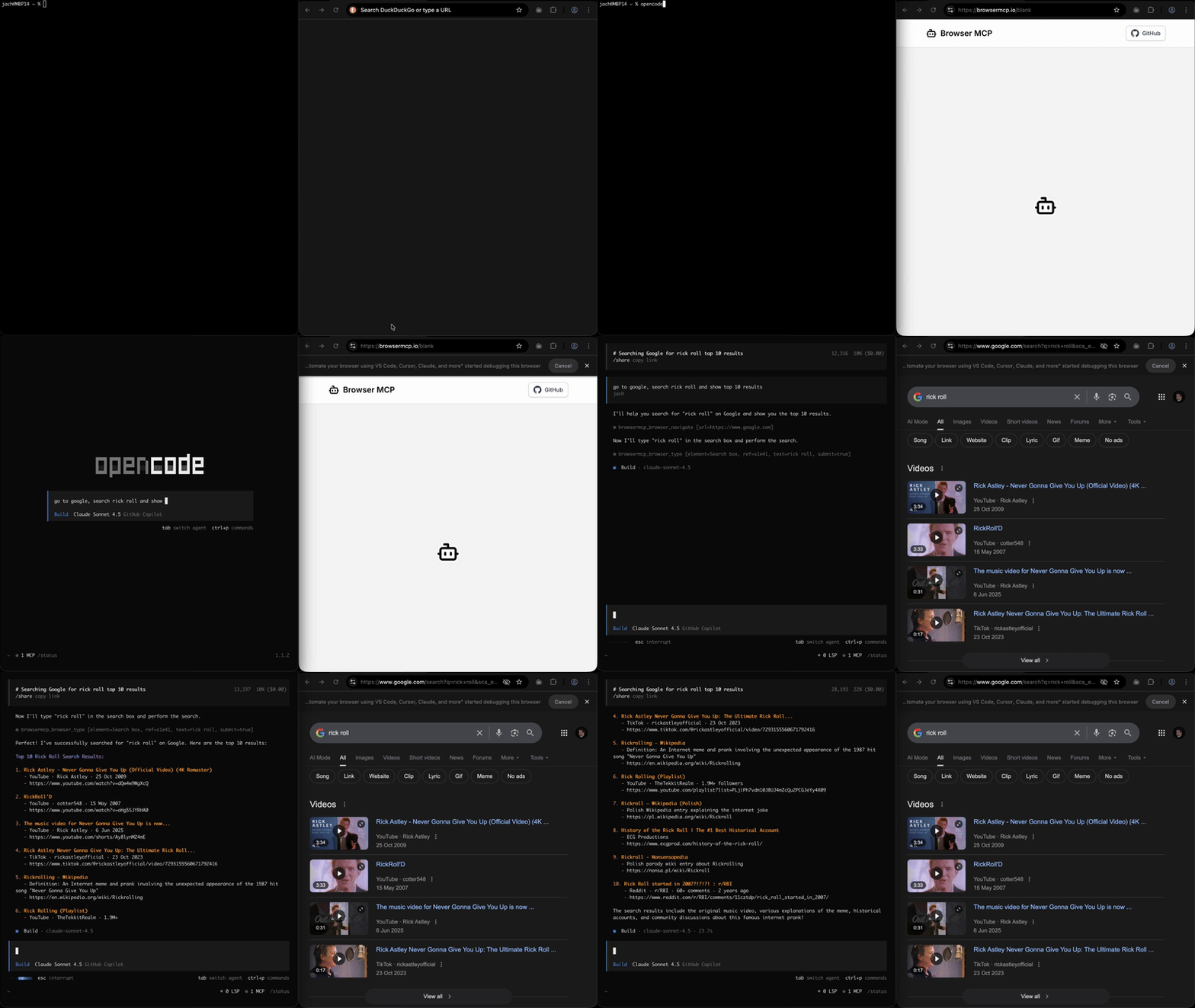
An OpenCode plugin that integrates Browser MCP to enable browser automation capabilities within OpenCode. This plugin allows the AI to control a browser, navigate websites, fill forms, click elements, and perform other browser automation tasks.
Published on npm as opencode-browser-v2. It is a fork of michaljach/opencode-browser, ported to the OpenCode v2 plugin API. If you are still on OpenCode v1, use the original opencode-browser package instead.
Demo
Features
- Full browser automation support through Browser MCP
- Speed-oriented browser guidance injected into the model prompt
- Tool-specific performance hints for expensive browser actions
- Fast retry behavior with no artificial reconnect backoff in the plugin
- Automatic detection of browser-related tasks
- Context preservation for browser state across session compactions
- Seamless integration with OpenCode's existing tools
Prerequisites
Before using this plugin, you need:
- Node.js installed on your system
- OpenCode installed and configured
- Browser MCP extension installed in your browser (Chrome/Edge)
Installation
Step 1: Install Browser MCP Extension
- Visit https://browsermcp.io/install
- Install the Browser MCP extension for your browser (Chrome or Edge)
- Follow the extension setup instructions
Step 2: Configure OpenCode
Fastest path:
npx opencode-browser-v2 init
This creates or updates ./opencode.json with the required plugins and mcp.servers.browsermcp entries while preserving any unrelated config you already have.
It also migrates a v1 config in place: plugin becomes plugins, servers move from mcp.<name> to mcp.servers.<name>, agent becomes agents, and the server's enabled flag becomes v2's disabled flag.
For a global setup instead of a project-local one:
npx opencode-browser-v2 init --global
Create or update your opencode.json configuration file. You can create this file in one of two locations:
- Global configuration (applies to all projects):
~/.config/opencode/opencode.json - Project-specific configuration (applies to current project only):
./opencode.json(in your project root)
Learn more about OpenCode configuration at https://opencode.ai/docs/config
Add this configuration to your opencode.json:
{
  "$schema": "https://opencode.ai/config.json",
  "plugins": ["opencode-browser-v2"],
  "mcp": {
    "servers": {
      "browsermcp": {
        "type": "local",
        "command": ["npx", "-y", "@browsermcp/mcp@0.1.3"]
      }
    }
  }
}
This configuration does two things:
- Installs the plugin - OpenCode automatically downloads
opencode-browser-v2from npm - Configures Browser MCP - Sets up the MCP server that actually controls the browser
That's it! No manual file copying required. OpenCode handles everything automatically.
The generated command pins the Browser MCP package version to avoid the extra @latest resolution step on startup and keep launches reproducible.
If you prefer to preview the generated config without writing it yet:
npx opencode-browser-v2 init --print
Alternative: Install Locally (for development/testing)
If you want to modify the plugin or test changes:
For global installation:
mkdir -p ~/.config/opencode/plugins
cp src/index.ts ~/.config/opencode/plugins/browser-mcp.ts
For project-specific installation:
mkdir -p .opencode/plugins
cp src/index.ts .opencode/plugins/browser-mcp.ts
The plugin will be automatically loaded on OpenCode startup.
Configuration
Basic Configuration
The minimal configuration requires only the MCP server setup:
{
  "$schema": "https://opencode.ai/config.json",
  "mcp": {
    "servers": {
      "browsermcp": {
        "type": "local",
        "command": ["npx", "-y", "@browsermcp/mcp@0.1.3"]
      }
    }
  }
}
MCP servers are enabled by default in v2. Set "disabled": true on a server to turn it off.
Advanced Configuration
Define a dedicated agent for browser work under the v2 agents key:
{
  "$schema": "https://opencode.ai/config.json",
  "mcp": {
    "servers": {
      "browsermcp": {
        "type": "local",
        "command": ["npx", "-y", "@browsermcp/mcp@0.1.3"]
      }
    }
  },
  "agents": {
    "browser-agent": {
      "description": "Agent specialized in browser automation tasks",
      "mode": "primary"
    }
  }
}
The v1 tools allow/deny maps (both the global one and the per-agent one) were replaced in v2 by the
permissions policy list on an agent. See the OpenCode agent configuration docs for the action and
resource names to use when scoping Browser MCP tools to a single agent.
Performance Behavior
The plugin improves Browser MCP speed by shaping how the model uses browser tools:
- Adds system guidance that prefers direct navigation and fewer browser calls
- Annotates expensive tools like snapshots, screenshots, and waits with performance hints
- Preserves fast-resume guidance during session compaction
- Avoids plugin-side reconnect delays so you can retry immediately when the browser extension is ready
Environment Variables
If you need to pass environment variables to the Browser MCP server:
{
  "$schema": "https://opencode.ai/config.json",
  "mcp": {
    "servers": {
      "browsermcp": {
        "type": "local",
        "command": ["npx", "-y", "@browsermcp/mcp@0.1.3"],
        "environment": {
          "BROWSER_MCP_DEBUG": "true"
        }
      }
    }
  }
}
Usage
Once installed and configured, you can use browser automation in your OpenCode prompts:
Basic Browser Navigation
Navigate to https://github.com and search for "opencode"
Form Filling
Go to the contact form at https://example.com/contact and fill in:
- Name: John Doe
- Email: john@example.com
- Message: Hello from OpenCode!
Then submit the form.
Web Scraping
Visit https://news.ycombinator.com and get the titles of the top 5 stories
Complex Automation
Go to https://example.com/login, log in with the test credentials,
navigate to the dashboard, and screenshot the main metrics panel
Prompt Tips
For best results when using browser automation:
- Be specific about URLs and actions
- Prefer direct URLs instead of clicking through intermediate pages
- Reuse page state instead of rechecking the same screen repeatedly
- Ask for verification only when needed because snapshots and screenshots are slower than targeted extraction
- Specify selectors when needed (CSS selectors, text content, etc.)
You can also add browser automation guidelines to your AGENTS.md file:
## Browser Automation

When performing browser automation tasks:
- Always confirm the page has loaded before interacting
- Use descriptive selectors (prefer text content over CSS selectors)
- Take screenshots when verification is needed
- Handle errors gracefully (page not found, element not visible, etc.)
- Close tabs when the task is complete
Plugin Features
Speed-Oriented Guidance
The plugin biases the model toward faster browser workflows:
- Prefers direct
navigatecalls when the destination URL is known - Reuses the current tab and page state instead of redoing navigation
- Minimizes
snapshot,screenshot, andwaitcalls unless they are actually needed - Encourages targeted extraction and direct actions over broad inspection
Lightweight Connection Recovery
The plugin still detects browser connection issues, but it no longer adds artificial retry sleeps:
- Detects common Browser MCP connection failures from tool output
- Adds immediate retry guidance to the result instead of pausing inside the plugin
- Marks the connection as restored after the next successful browser action
Automatic Browser Tool Detection
The plugin automatically detects when Browser MCP tools are being used and applies browser-specific guidance.
Session Context Preservation
During session compaction, the plugin preserves browser automation context, ensuring the AI remembers:
- Browser interactions that occurred
- Current browser state considerations
- Fast-resume guidance so it can avoid repeating navigation and inspection
Tool Definition Hints
The plugin annotates Browser MCP tool definitions with performance notes, especially for slower tools like snapshots, screenshots, and waits.
Troubleshooting
Browser MCP Connection Lost
If you see connection errors:
- Check extension status: Verify the Browser MCP extension is enabled in Chrome
- Re-enable extension: If you disabled it, simply re-enable it and retry the browser action immediately
- Check browser is running: Ensure Chrome/Edge is actually running
- Retry after readiness: The plugin does not add extra backoff delay, so the next attempt can run right away
- Restart only if needed: Restart OpenCode only if the browser stays unavailable after retrying
The plugin will display messages like:
[Browser MCP] The browser connection looks unavailable. Re-enable the Browser MCP extension or browser, then retry.[Browser MCP] Connection restored. Continuing without extra retry delay.
Browser MCP Not Working
- Check extension is installed: Open your browser and verify the Browser MCP extension is installed and enabled
- Verify MCP server config: Ensure your
opencode.jsonhas the correct MCP configuration - Check Node.js: Ensure Node.js is installed:
node --version - Test MCP connection: Restart OpenCode after adding the MCP configuration
Plugin Not Loading
- Check file location: Ensure the plugin file is in the correct directory
- Check file name: Plugin files should end in
.tsor.js - Check syntax: Ensure the TypeScript/JavaScript syntax is valid
- Check logs: Look for plugin initialization messages in OpenCode output
Tools Not Available
- Check MCP server status: Ensure the Browser MCP server started successfully
- Check tool configuration: Verify tools aren't disabled in your config
- Restart OpenCode: Try restarting OpenCode after configuration changes
Debug Mode
Enable debug logging by modifying the plugin or checking OpenCode logs:
# Check OpenCode logs
opencode --verbose
Development
Building from Source
If you want to modify the plugin:
- Clone the repository
- Run
npm install - Make your changes to
src/index.ts - Run
npm run typecheck - Test locally by copying to your OpenCode plugin directory
- Submit a PR if you'd like to contribute!
Plugin Architecture
The plugin is an OpenCode v2 plugin: it default-exports a Plugin.define({ id, setup }) definition
and registers everything through the setup context.
| Registration | Purpose |
|---|---|
ctx.session.hook("context", ...) |
Inject speed-oriented browser guidance and append performance hints to Browser MCP tool descriptions |
ctx.session.hook("generate", ...) |
Apply the same guidance to auxiliary generate requests |
ctx.tool.hook("execute.after", ...) |
Post-process browser tool results and annotate connection failures |
ctx.session.hook("compaction", ...) |
Preserve browser context across compaction |
ctx.event.subscribe() |
Drop per-session state on session.deleted |
The cleanup function returned by setup aborts the event subscription and clears session state; hook
registrations are disposed by OpenCode automatically.
Requires @opencode/plugin v2. For OpenCode v1, use the original opencode-browser package, which this project is a fork of.
Contributing
Contributions are welcome! Please:
- Fork the repository
- Create a feature branch
- Make your changes
- Submit a pull request
Resources
License
MIT License - See LICENSE file for details
Support
For issues and questions:
- Browser MCP issues: Browser MCP GitHub
- OpenCode issues: OpenCode GitHub
- Plugin issues: Open an issue in this repository
Changelog
See CHANGELOG.md for a detailed list of changes in each version.
Similar plugins

Browser
opencode-browser
OpenCode plugin that integrates Browser MCP for browser automation
Browser Mcp
opencode-browser-mcp
OpenCode plugin that integrates Browser MCP for browser automation

Secrets Env
opencode-secrets-env
OpenCode plugin that injects secrets from ~/.config/opencode/secrets.env into process.env at startup, hot-reloads them on change, and reconnects MCP servers so they pick up new values