
Novaspace
novaSpace: a card-based sidebar for OpenCode that syncs your setup across machines
0
2,225
近 7 天 57
40.4
生态多维模型
10 天前
2026-09-24
快速安装与配置
opencode.json写入当前项目的 opencode.json,只对这个仓库生效。
opencode.json
{
  "$schema": "https://opencode.ai/config.json",
  "plugin": ["opencode-novaspace@0.4.2"]
}
写入 ~/.config/opencode/opencode.json,对所有项目生效。
~/.config/opencode/opencode.json
{
  "$schema": "https://opencode.ai/config.json",
  "plugin": ["opencode-novaspace@0.4.2"]
}
若你要在本地改造这个插件,先装到项目里再从本地路径引用。
shell
pnpm add -D opencode-novaspaceOpenCode 启动时会通过内嵌运行时自动加载 npm 依赖并缓存至本地目录,无需手动在全局环境执行安装。
A better sidebar for OpenCode, plus your setup on every machine.


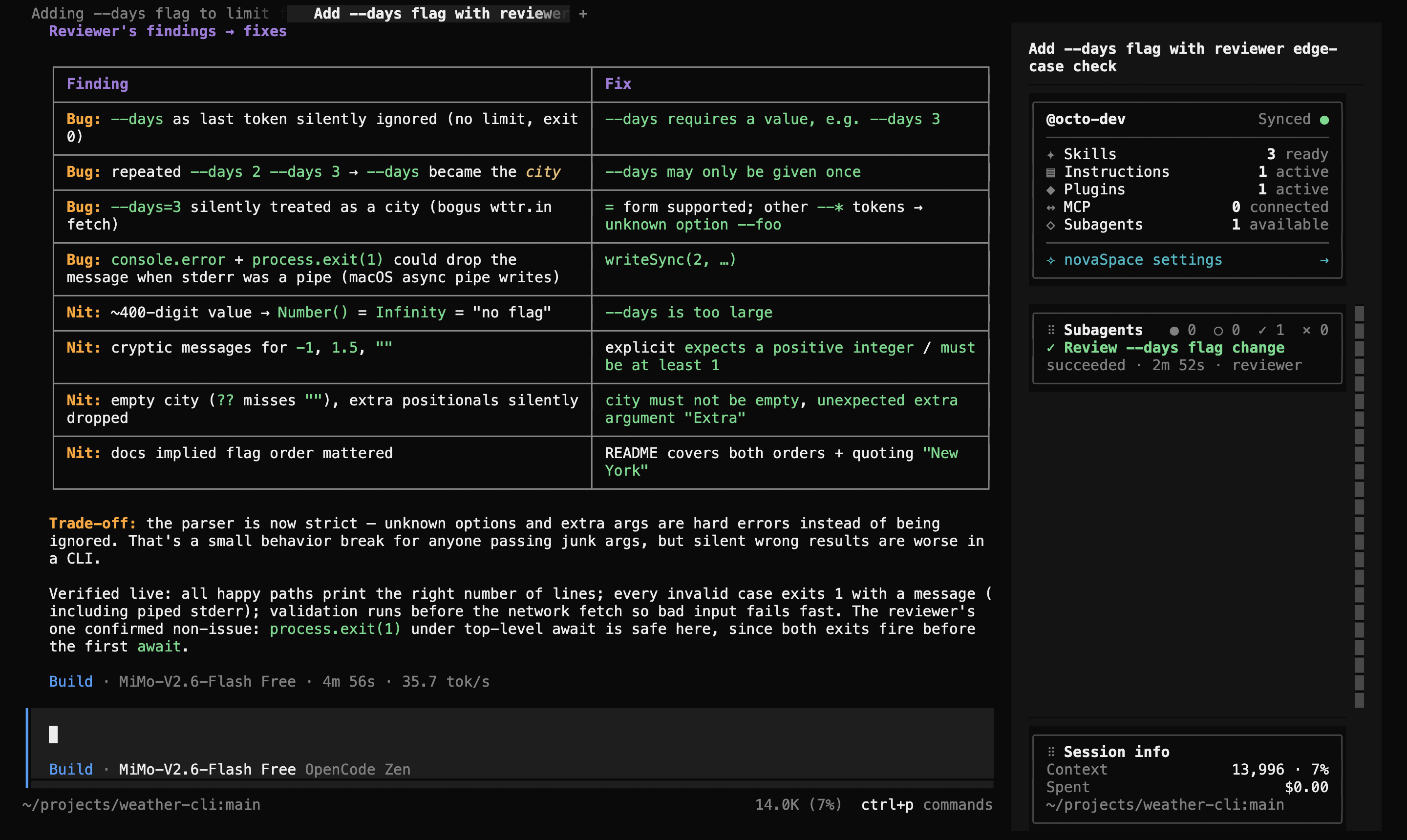
novaSpace replaces OpenCode's terminal sidebar with calm, rearrangeable cards. It shows your setup and your session at a glance, and you can add cards of your own. It can also keep your OpenCode profile in sync across machines using a private GitHub repository.
Why novaSpace
- See your whole setup at once. Skills, instructions, plugins, MCP servers and subagents are counted in one card, with one-click links to their files.
- Move from one machine to another in a minute. Connect a private GitHub repository once. Your settings, skills, agents and commands then follow you. Credentials and machine-specific paths stay on each machine.
- Arrange the sidebar your way. Drag cards to reorder them or pin them to the bottom. Your layout is saved.
- Add your own cards. Write a small card module on your machine and novaSpace shows it alongside the built-in cards.
- Fits in with your theme. Cards use colours from your current OpenCode theme, so they look right in light and dark themes.
Installation
opencode plugin add opencode-novaspace
Then quit and reopen OpenCode. The sidebar is only replaced when OpenCode starts, so reloading isn't enough. You need OpenCode 2.0.12 or later.
That's all. The profile card appears at the top of the sidebar and session info at the bottom. OpenCode lets you know when a novaSpace update is available. You can install it from ✧ novaSpace settings.
What's in the sidebar
| Card | What it shows |
|---|---|
| Profile & setup | Your GitHub account and sync status, plus how many skills, instructions, plugins, MCP servers and subagents are active. ✧ novaSpace settings opens your configuration files and profile sync. |
| Session info | Context used, cost so far, and the current folder and branch. |
Anything else in the sidebar is a custom card that you add yourself.
Settings in one place
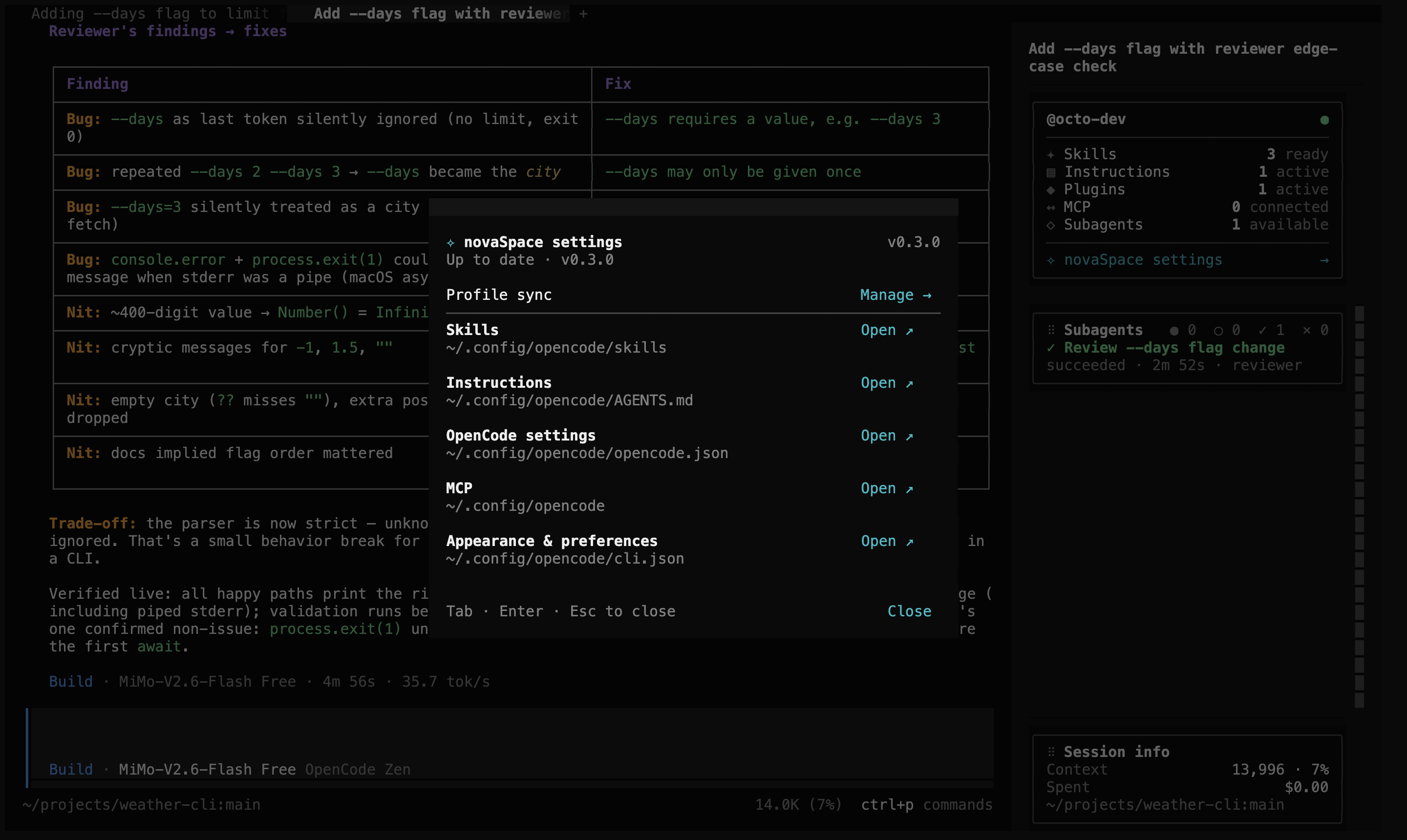
✧ novaSpace settings shows where each part of your setup is stored. Choose Open to edit a file or folder in your default app. You can also manage profile sync and updates here. Use the mouse, or Tab, Enter and Esc.
Sync your setup across machines
Profile sync keeps your OpenCode setup the same on every computer you use. It uses a private GitHub repository that you own.
- Install and sign in to the GitHub CLI with
gh auth login. - Open ✧ novaSpace settings → Profile sync → Set up.
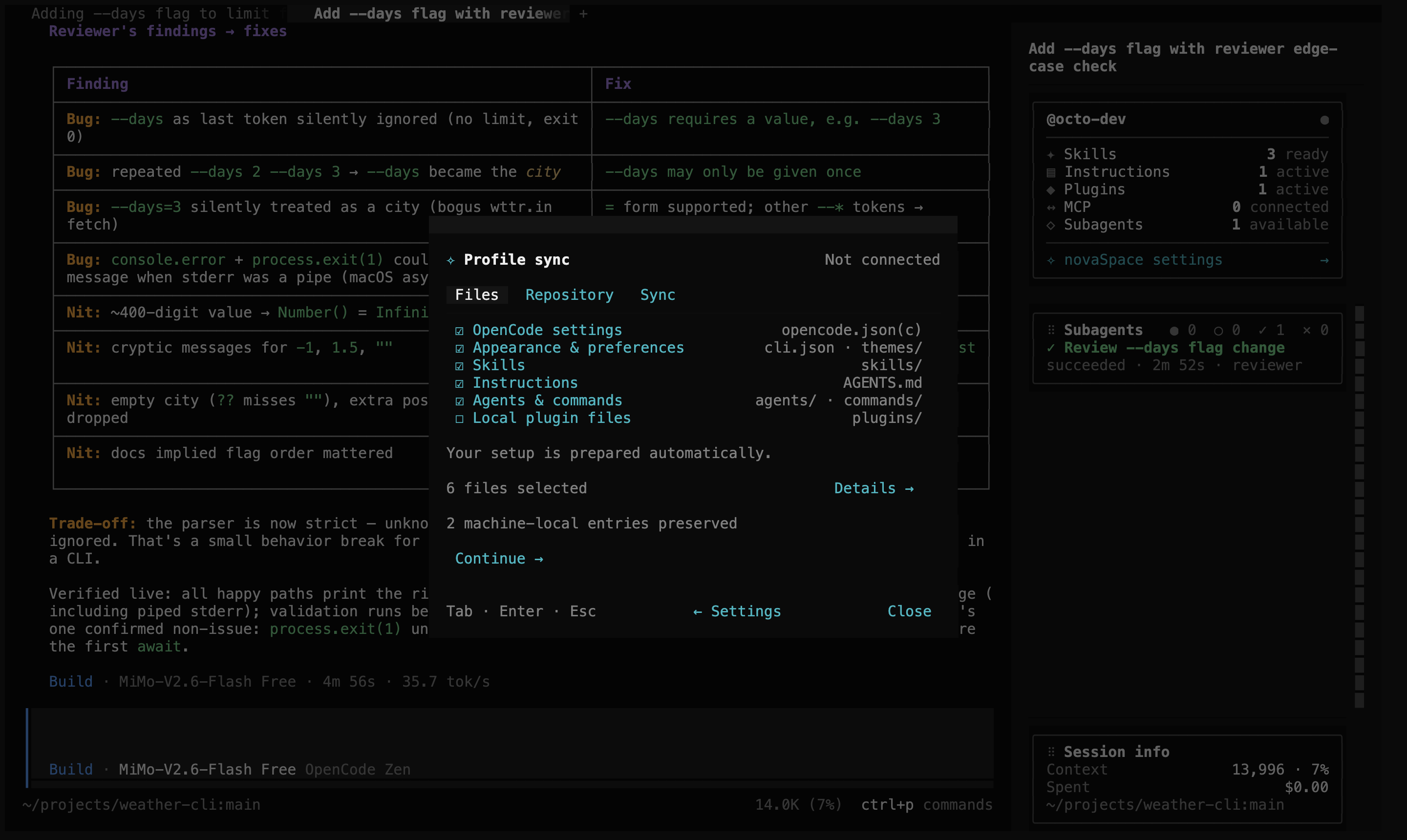
- Choose what to sync, then Continue.
- Enter a repository name, then choose Create & sync (new repository) or Connect & sync (existing one).
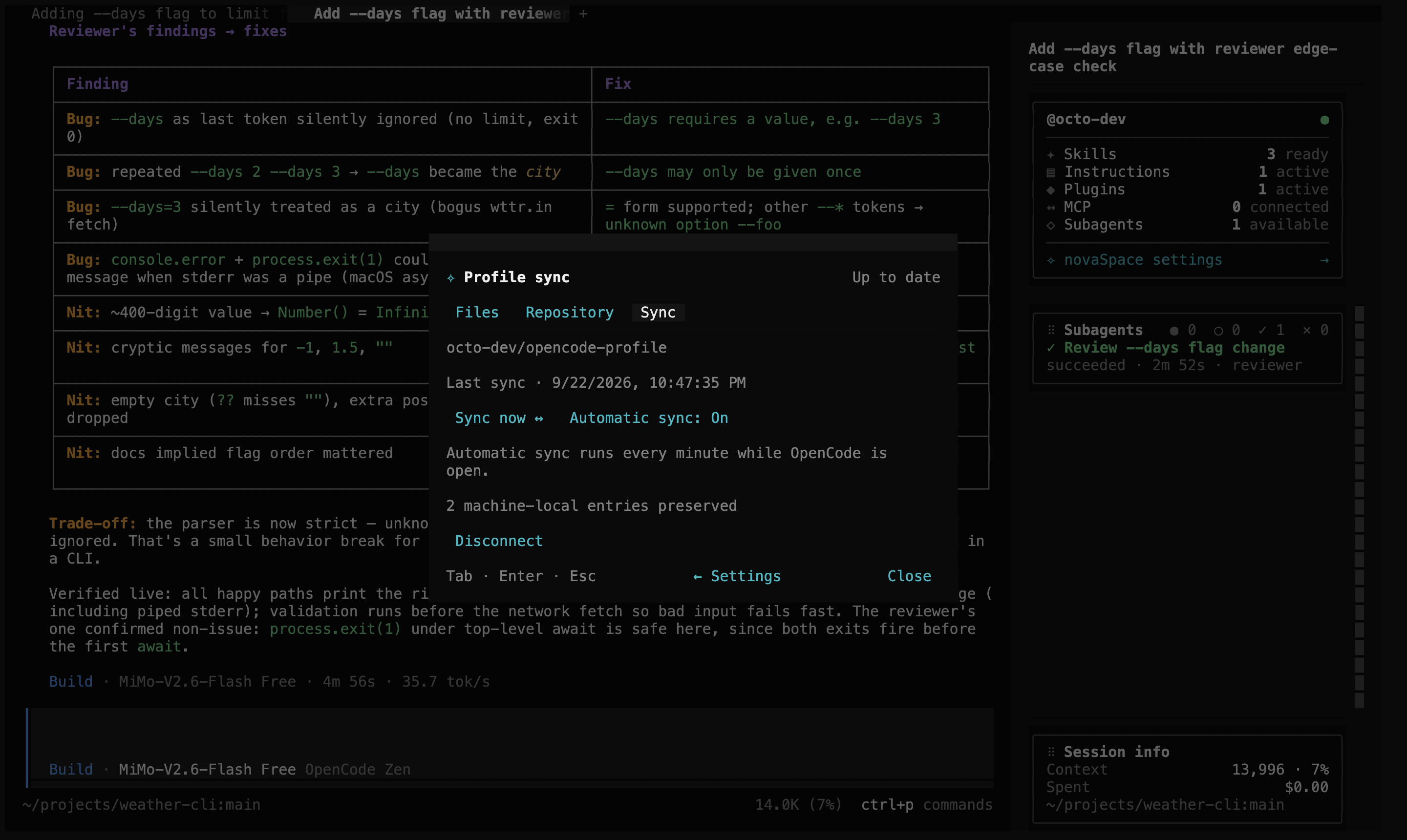
That's it. novaSpace runs the first sync and then syncs automatically every minute while OpenCode is open. On another machine, install novaSpace and connect the same repository to restore your profile.
| You can sync | Which includes |
|---|---|
| OpenCode settings | Default model, providers, plugins, MCP servers, permissions, agents and commands in opencode.json(c) |
| Appearance & preferences | Theme, keybindings, terminal preferences and novaSpace options in cli.json, plus custom themes |
| Skills | Your global skills, including ~/.agents/skills and ~/.claude/skills |
| Instructions | Your global AGENTS.md |
| Agents & commands | Your global agents/ and commands/ files |
| Local plugin files | Scripts in your global plugins/ folder (off by default) |
What stays on each machine: sign-ins and tokens, credentials written into config files, machine-specific paths and local servers, session history, environment variables and caches. novaSpace keeps these local automatically. It doesn't change the files on your machine to do this. Comments and formatting in your config files are preserved.
When two machines disagree: edits to different files or settings are merged. If the same setting changed on both machines, sync pauses so you can choose which version to keep. Nothing is overwritten without a backup. Previous versions stay in your repository's history.
[!NOTE] The profile is stored in your private repository. It isn't encrypted, so keep the repository private. Credential detection is best effort; use
{env:NAME}references for secrets in your config.
The sidebar's colour dot shows sync status. Hover over it to see the status label. For a full description of sync, see How profile sync works.
Arrange your cards
Drag the ⠿ grip next to a card's title to move it. A line shows where it will
land. Drop it at the bottom to pin it there. Several bottom cards become pages
that you can switch with the dots underneath. Press Esc to cancel.
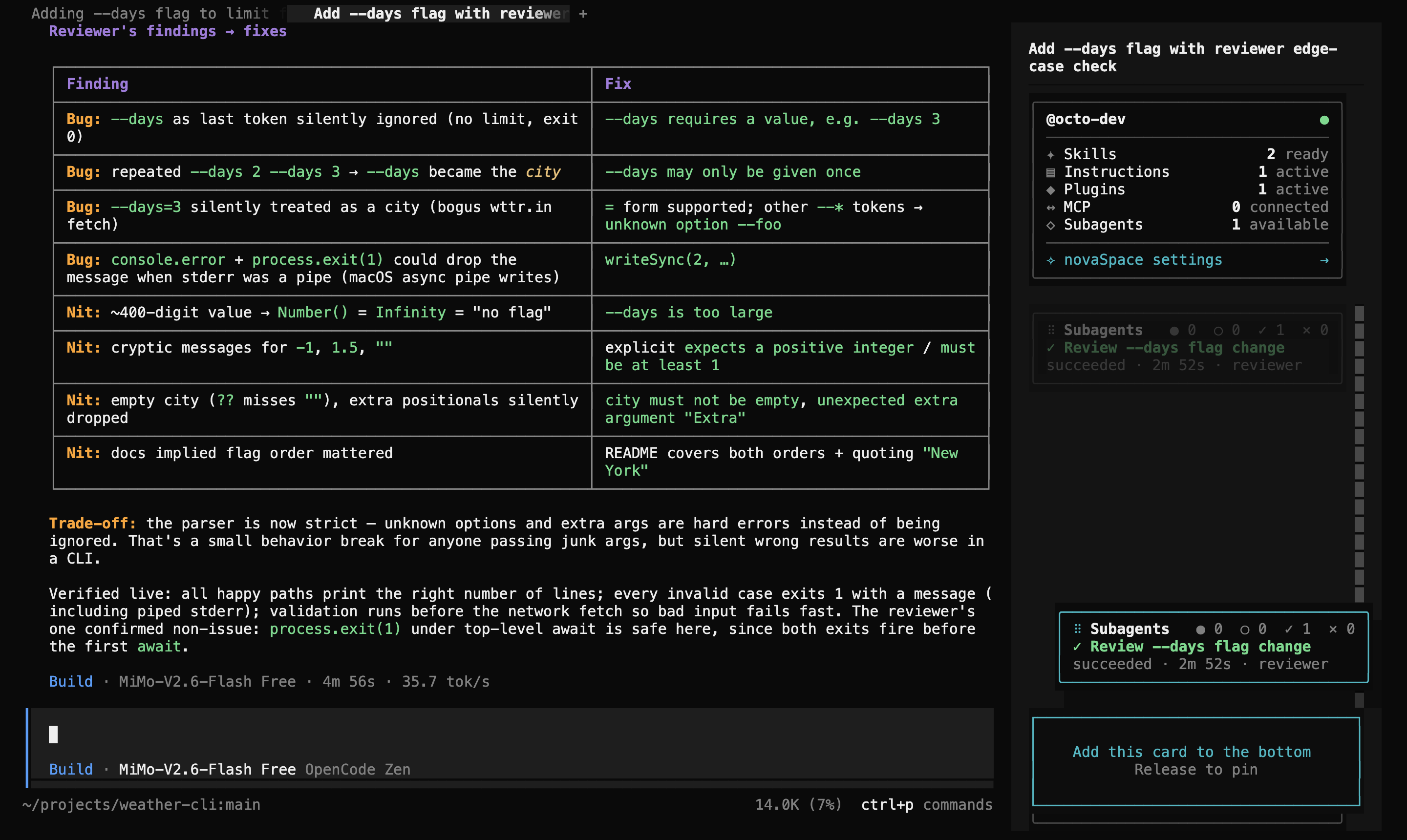
Your layout survives restarts. The profile card always stays at the top.
Configuration
novaSpace works without any configuration. To choose cards or change the initial
layout, add an entry to cli.json:
{
  "plugins": [
    {
      "package": "opencode-novaspace",
      "options": {
        "cards": ["setup", "custom:subagents", "session-info"],
        "pins": { "setup": "top", "session-info": "bottom" },
        "customCards": { "custom:subagents": "~/cards/subagents.js" }
      }
    }
  ]
}
[!IMPORTANT] Put novaSpace options in
cli.json, notopencode.json. OpenCode doesn't passopencode.jsonoptions to the sidebar. Keepopencode-novaspacein thepluginslist ofopencode.json, which is whatopencode plugin adddoes.
| Option | Default | Description |
|---|---|---|
cards |
["setup", "session-info"], then your custom cards |
Cards to show, in order. |
hidden |
[] |
Cards to hide without removing them from cards. |
pins |
setup top, session-info bottom |
Set "top", "bottom" or false for each card. |
surfaceStrength |
0.14 |
How strongly card backgrounds stand out from the sidebar. |
pinnedSurfaceStrength |
0.08 |
The same, for the top and bottom cards. |
hoverStrength |
0.08 |
Background highlight when you hover over a card. |
hoverDuration |
120 |
Hover animation length in milliseconds. |
gap |
1 |
Blank rows between cards. |
customCards |
{} |
Your own cards: an ID starting with custom: mapped to an absolute or ~/ path. See Custom cards. |
These options set the initial layout. After you rearrange cards by dragging, the saved layout is used instead. A custom card you add later still joins the saved layout, at the end.
Custom cards
A custom card is a JavaScript module on your machine. It default-exports the
card's title and a render function:
export default {
  apiVersion: 1,
  title: "Hello",
  render({ chrome, ctx, drag, options, pin }) {
    // Build the card with chrome.Card, chrome.CardTitle, chrome.CardAction,
    // chrome.cardHeader and chrome.metricRow so it matches the built-in cards.
  },
}
Declare it under customCards with an ID that starts with custom:, lowercase
letters, digits and dashes only. It then works like any other card: you can
reorder, pin and hide it.
render gets the same props as the built-in cards: ctx (the OpenCode plugin
context, including ctx.data and ctx.theme), sessionID, options, pin,
drag and dragging, plus chrome. Pass drag to chrome.Card and
chrome.CardTitle to get the drag grip.
Write the card with OpenTUI Solid JSX, then compile it to JavaScript before
novaSpace loads it. The compiled file must import @opentui/solid and solid-js
directly, so it uses the same runtime as OpenCode. Compile with
babel-preset-solid using { moduleName: "@opentui/solid", generate: "universal" }.
Don't bundle those packages into the file.
If a card can't be loaded, novaSpace skips it and shows a message. The rest of the sidebar still works.
Troubleshooting
- The sidebar hasn't changed. Quit OpenCode completely and start it again.
- Options have no effect. Check they're in
cli.json, notopencode.json. If you've rearranged cards, the saved layout is used instead of yourcardsorder. - A custom card doesn't appear. Check that its ID starts with
custom:, that the path is absolute or starts with~/, and that the file is compiled JavaScript. Restart OpenCode after changingcustomCards. - Subagents, Working Set, Memory or Copilot cards disappeared after updating. From 0.4.0 these are no longer part of novaSpace. Add them back as custom cards.
- Sync says "Set up sync" or can't connect. Run
gh auth status. Sync uses the GitHub account that was signed in when you connected. If you've switched accounts, switch back or reconnect. - Sync is paused with a conflict. Open Profile sync and choose the local or repository version.
- Other machines can't sync. All syncing machines need novaSpace 0.3.0 or later. Update novaSpace on each one.
Found a bug or have an idea? Open an issue.
Development
Interested in building a card or contributing? See CONTRIBUTING.md.
novaSpace is an independent community project. It isn't affiliated with or endorsed by Microsoft or the OpenCode project.
License
MIT © Bruno Bett. See LICENSE.
同类生态推荐

Timeline
@memef1f1y/opencode-timeline-plugin
Conversation history node viewer for the OpenCode TUI (sidebar timeline)

Skills Tui
opencode-skills-tui
OpenCode TUI plugin that shows skills and loaded state in the sidebar

Sidebar Token Metrics
opencode-sidebar-token-metrics
OpenCode sidebar plugin showing generation speed (tok/s), cache hit rate, and average time-to-first-token (TTFT).