
Pty
OpenCode plugin for interactive PTY management - run background processes, send input, read output with regex filtering
0
13
近 7 天 1
23.4
生态多维模型
2 个月前
2026-07-25
快速安装与配置
opencode.json写入当前项目的 opencode.json,只对这个仓库生效。
opencode.json
{
  "$schema": "https://opencode.ai/config.json",
  "plugin": ["@gcszhn/opencode-pty@0.3.7"]
}
写入 ~/.config/opencode/opencode.json,对所有项目生效。
~/.config/opencode/opencode.json
{
  "$schema": "https://opencode.ai/config.json",
  "plugin": ["@gcszhn/opencode-pty@0.3.7"]
}
若你要在本地改造这个插件,先装到项目里再从本地路径引用。
shell
pnpm add -D @gcszhn/opencode-ptyOpenCode 启动时会通过内嵌运行时自动加载 npm 依赖并缓存至本地目录,无需手动在全局环境执行安装。
A plugin for OpenCode that provides interactive PTY (pseudo-terminal) management, enabling the AI agent to run background processes, send interactive input, and read output on demand.
Why?
OpenCode's built-in bash tool runs commands synchronously—the agent waits for completion. This works for quick commands, but not for:
- Dev servers (
npm run dev,cargo watch) - Watch modes (
npm test -- --watch) - Long-running processes (database servers, tunnels)
- Interactive programs (REPLs, prompts)
This plugin gives the agent full control over multiple terminal sessions, like tabs in a terminal app.
Features
- Background Execution: Spawn processes that run independently
- Multiple Sessions: Manage multiple PTYs simultaneously
- Interactive Input: Send keystrokes, Ctrl+C, arrow keys, etc.
- Output Buffer: Read output anytime with pagination (offset/limit)
- Pattern Filtering: Search output using regex (like
grep) - Exit Notifications: Get notified when processes finish (eliminates polling)
- Permission Support: Respects OpenCode's bash permission settings
- Session Lifecycle: Sessions persist until explicitly killed
- Auto-cleanup: PTYs are cleaned up when OpenCode sessions end
- Web UI: Modern React-based interface for session management
- Real-time Streaming: WebSocket-based live output updates
Setup
Add the plugin to your OpenCode config:
{
  "$schema": "https://opencode.ai/config.json",
  "plugin": ["opencode-pty"]
}
That's it. OpenCode will automatically install the plugin on next run.
Updating
OpenCode automatically checks for and installs plugin updates on startup. You don't need to do anything manually!
If you ever need to force a clean reinstall, you can clear the cache:
rm -rf ~/.cache/opencode/node_modules/opencode-pty
opencode
Tools Provided
| Tool | Description |
|---|---|
pty_spawn |
Create a new PTY session (command, args, workdir, env, title, notifyOnExit, timeoutSeconds) |
pty_write |
Send input to a PTY (text, escape sequences like \x03 for Ctrl+C) |
pty_read |
Read output buffer with pagination and optional regex filtering |
pty_list |
List all PTY sessions with status, PID, line count |
pty_kill |
Terminate a PTY, optionally cleanup the buffer |
Slash Commands
This plugin provides slash commands that can be used in OpenCode chat:
| Command | Description |
|---|---|
/pty-open-background-spy |
Open the PTY web server interface in the browser |
/pty-show-server-url |
Show the URL of the running PTY web server instance |
Web UI
This plugin includes a modern React-based web interface for monitoring and interacting with PTY sessions.
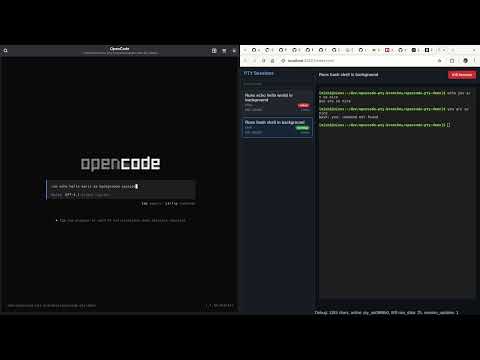
If you instruct the coding agent to run something in background, you have to name it "session",
i.e. "run xy as a background SESSION".
If you name it "task" or "process" or anything else, the agent will sometimes run it as background subprocess using &.
Starting the Web UI
- Run opencode with the plugin.
- Run slash command
/pty-open-background-spy.
This will start the background sessions observer cockpit server and launch the browser with web UI.
Features
- Session List: View all active PTY sessions with status indicators
- Real-time Output: Live streaming of process output via WebSocket
- Interactive Input: Send commands and input to running processes
- Session Management: Kill sessions directly from the UI
- Connection Status: Visual indicator of WebSocket connection status
REST API
The web server provides a REST API for session management:
| Method | Endpoint | Description |
|---|---|---|
GET |
/api/sessions |
List all PTY sessions |
POST |
/api/sessions |
Create a new PTY session |
GET |
/api/sessions/:id |
Get session details |
POST |
/api/sessions/:id/input |
Send input to a session |
DELETE |
/api/sessions/:id |
Kill a session (without cleanup) |
DELETE |
/api/sessions/:id/cleanup |
Kill and cleanup a session |
GET |
/api/sessions/:id/buffer/plain |
Get session output buffer (returns { plain: string, byteLength: number }) |
GET |
/api/sessions/:id/buffer/raw |
Get session output buffer (raw data) |
DELETE |
/api/sessions |
Clear all sessions |
GET |
/health |
Server health check with metrics |
Session Creation
curl -X POST http://localhost:[PORT]/api/sessions \
  -H "Content-Type: application/json" \
  -d '{
    "command": "bash",
    "args": ["-c", "echo hello && sleep 10"],
    "description": "Test session",
    "timeoutSeconds": 5
  }'
Replace [PORT] with the actual port number shown in the server console output.
WebSocket Streaming
Connect to /ws for real-time updates:
const ws = new WebSocket('ws://localhost:[PORT]/ws')

ws.onmessage = (event) => {
  const data = JSON.parse(event.data)
  if (data.type === 'raw_data') {
    console.log('New output:', data.rawData)
  } else if (data.type === 'session_list') {
    console.log('Session list:', data.sessions)
  }
}
Replace [PORT] with the actual port number shown in the browser when running the slash command output.
Development
Future implementation will include:
App
- A startup script that runs the server (in the same process).
- The startup script will run
bun vitewith an environment variable set to the server URL - The client will use this environment variable for WebSocket and HTTP requests
This will ease the development on the client.
Usage Examples
Start a dev server
pty_spawn: command="npm", args=["run", "dev"], title="Dev Server"
→ Returns: pty_a1b2c3d4
Start a timed session
pty_spawn: command="npm", args=["run", "dev"], title="Dev Server", timeoutSeconds=600
→ Returns: pty_a1b2c3d4
Check server output
pty_read: id="pty_a1b2c3d4", limit=50
→ Shows last 50 lines of output
Filter for errors
pty_read: id="pty_a1b2c3d4", pattern="error|ERROR", ignoreCase=true
→ Shows only lines matching the pattern
Send Ctrl+C to stop
pty_write: id="pty_a1b2c3d4", data="\x03"
→ Sends interrupt signal
Kill and cleanup
pty_kill: id="pty_a1b2c3d4", cleanup=true
→ Terminates process and frees buffer
Run with exit notification
pty_spawn: command="npm", args=["run", "build"], title="Build", notifyOnExit=true
→ Returns: pty_a1b2c3d4
The AI agent will receive a notification when the build completes:
<pty_exited>
ID: pty_a1b2c3d4
Title: Build
Exit Code: 0
Output Lines: 42
Last Line: Build completed successfully.
</pty_exited>

Use pty_read to check the full output.
This eliminates the need for polling—perfect for long-running processes like builds, tests, or deployment scripts. If the process fails (non-zero exit code), the notification will suggest using pty_read with the pattern parameter to search for errors.
Configuration
Environment Variables
| Variable | Default | Description |
|---|---|---|
PTY_MAX_BUFFER_LINES |
50000 |
Maximum lines to keep in output buffer per session |
PTY_WEB_HOSTNAME |
::1 |
Hostname for the web server to bind to (IPv6 loopback by default) |
PTY_WEB_PORT |
0 (random) |
Port for the web server (0 = random port) |
Permissions
This plugin respects OpenCode's permission settings for the bash tool. Commands spawned via pty_spawn are checked against your permission.bash configuration.
{
  "$schema": "https://opencode.ai/config.json",
  "permission": {
    "bash": {
      "npm *": "allow",
      "git push": "deny",
      "terraform *": "deny"
    }
  }
}
[!IMPORTANT] Limitations compared to built-in bash tool:
- "ask" permissions are treated as "deny": Since plugins cannot trigger OpenCode's permission prompt UI, commands matching an "ask" pattern will be denied. A toast notification will inform you when this happens. Configure explicit "allow" or "deny" for commands you want to use with PTY.
- "external_directory" with "ask" is treated as "allow": When the working directory is outside the project and
permission.external_directoryis set to "ask", this plugin allows it (with a log message). Set to "deny" explicitly if you want to block external directories.
Example: Allow specific commands for PTY
{
  "$schema": "https://opencode.ai/config.json",
  "permission": {
    "bash": {
      "npm run dev": "allow",
      "npm run build": "allow",
      "npm test *": "allow",
      "cargo *": "allow",
      "python *": "allow"
    }
  }
}
How It Works
- Spawn: Creates a PTY using bun-pty, runs command in background
- Buffer: Output is captured into a rolling line buffer (ring buffer)
- Read: Agent can read buffer anytime with offset/limit pagination
- Filter: Optional regex pattern filters lines before pagination
- Write: Agent can send any input including escape sequences
- Lifecycle: Sessions track status (running/exited/killed), persist until cleanup
- Notify: When
notifyOnExitis true, sends a message to the session when the process exits - Web UI: React frontend connects via WebSocket for real-time updates
Session Lifecycle
spawn → running → [exited | killed]
                      ↓
              (stays in list until cleanup=true)
Sessions remain in the list after exit so the agent can:
- Read final output
- Check exit code
- Compare logs between runs
Use pty_kill with cleanup=true to remove completely.
Local Development
git clone https://github.com/shekohex/opencode-pty.git
cd opencode-pty
bun ci          # install packages from bun.lock
bun lint        # Runs Biome linting checks
bun format      # Runs Biome formatting checks
bun typecheck   # Runs TypeScript type checking
bun build:dev   # Build the React app for development
bun unittest    # Runs the unit tests
bun test:e2e    # Runs the e2e tests
To load a local checkout in OpenCode:
{
  "$schema": "https://opencode.ai/config.json",
  "plugin": ["file:///absolute/path/to/opencode-pty/index.ts"]
}
Diagrams
Sequence
Use Case 1 – Opening the PTY Monitor Web UI
sequenceDiagram
    participant User as Human User
    participant Chat as OpenCode Chat
    participant Core as OpenCode Core
    participant Plugin as PTY Plugin
    participant Manager as PTY Manager (in Plugin)
    participant WS as WebSocket Server (in Plugin)
    participant Browser as Web Browser

    Note over Plugin,WS: Plugin starts/owns the WS server and Manager

    User->>Chat: Types /pty-open-background-spy
    Chat->>Core: Slash command received
    Core->>Plugin: Dispatches to registered command handler
    Plugin->>Browser: open(server.url.origin)
    activate Browser
    Browser->>WS: Connects → ws://.../ws
    WS->>Manager: Queries for current sessions (manager.list())
    Manager-->>WS: Returns session data
    WS-->>Browser: Sends session_list + subscribes to updates
    Browser-->>User: PTY monitor UI appears (sessions + terminals)
Use Case 2 – Starting a Long-Running Background Process
sequenceDiagram
    participant User
    participant Chat as OpenCode Chat
    participant Agent as AI Agent
    participant Plugin as PTY Plugin
    participant Manager as PTY Manager
    participant PTY as bun-pty Process
    participant WS as WebSocket Server
    participant UI as PTY Web UI (optional)

    User->>Chat: "start vite dev server in background"
    Chat->>Agent: User message
    Agent->>Plugin: Calls pty_spawn(command="vite", args=["dev"], ...)
    Plugin->>Manager: spawn(options)
    Manager->>PTY: Launches real process
    activate PTY
    PTY-->>Manager: stdout/stderr chunks
    Manager->>Manager: Appends to RingBuffer
    Manager->>WS: Publishes raw_data + session_update
    alt UI already open
        WS-->>UI: Real-time terminal output
        UI-->>User: Live xterm.js view
    end
    Plugin-->>Agent: Returns session info
    Agent-->>Chat: "Dev server started (ID: pty_abc123)"
    Chat-->>User: Confirmation message
Use Case 3 – Sending Interactive Input to a Running Session
sequenceDiagram
    participant User
    participant UI as PTY Web UI
    participant WS as WebSocket Server
    participant Manager as PTY Manager
    participant PTY as bun-pty Process

    %% Variant A: Human typing in browser (most common)
    User->>UI: Types "rs<Enter>" or pastes text
    UI->>WS: Sends {type:"input", sessionId, data:"rs\n"}
    WS->>Manager: write(sessionId, data)
    Manager->>PTY: process.write(data)
    PTY-->>Manager: New output (restart message, etc.)
    Manager->>WS: Publishes raw_data
    WS-->>UI: Updates xterm.js live

    %% Variant B: AI sending input
    Note over User,UI: Alternative path – AI controlled
    Agent->>Plugin: pty_write(id, "\x03")  // e.g. Ctrl+C
    Plugin->>Manager: write(id, data)
    Manager->>PTY: process.write("\x03")
Use Case 4 – Reading Output / Logs On Demand
sequenceDiagram
    participant User
    participant Chat
    participant Agent as AI Agent
    participant Plugin as PTY Plugin
    participant Manager as PTY Manager
    participant Buffer as RingBuffer

    User->>Chat: "show me the last 200 lines of the dev server"
    Chat->>Agent: User question
    Agent->>Plugin: pty_read(id, offset?, limit=200, pattern?)
    Plugin->>Manager: read / search request
    Manager->>Buffer: read(offset, limit) or search(pattern)
    Buffer-->>Manager: Matching / paginated lines
    Manager-->>Plugin: Raw or formatted lines
    Plugin-->>Agent: Text response
    Agent-->>Chat: "Here are the logs:\n\n1 | [vite] ... \n..."
    Chat-->>User: Logs displayed in chat
Use Case 5A – Killing / Cleaning Up a Session via Web UI
sequenceDiagram
    participant User
    participant UI as PTY Web UI
    participant HTTP as HTTP Server
    participant Manager as PTY Manager
    participant PTY as bun-pty Process
    participant WS as WebSocket Server

    Note over PTY: Assuming PTY is active (running process)<br>notifyOnExit = false (no chat notification,<br>but WS/UI always gets status updates)

    activate PTY

    User->>UI: Clicks "Kill" / "×" on session
    UI->>HTTP: DELETE /api/sessions/:id  (or /cleanup)
    HTTP->>Manager: kill(id, cleanup?)
    Manager->>PTY: Sends SIGTERM (if running)
    PTY-->>Manager: onExit event (code, signal)
    deactivate PTY
    Manager->>WS: Publishes session_update (status: killed/exited)
    WS-->>UI: UI updates → shows "exited" or removes entry
Use Case 5B – Killing / Cleaning Up a Session via Agent
sequenceDiagram
    participant User
    participant Chat as OpenCode Chat
    participant Agent as AI Agent
    participant Plugin as PTY Plugin
    participant Manager as PTY Manager
    participant PTY as bun-pty Process
    participant WS as WebSocket Server
    participant UI as PTY Web UI (optional)

    Note over PTY: Assuming PTY is active (running process)<br>notifyOnExit = false (no chat notification,<br>but WS/UI always gets status updates)

    activate PTY

    User->>Chat: "kill the dev server"
    Chat->>Agent: User request
    Agent->>Plugin: pty_kill(id, cleanup=true)
    Plugin->>Manager: kill(id, true)
    Manager->>PTY: SIGTERM + remove from list (if cleanup)
    PTY-->>Manager: onExit event (code, signal)
    deactivate PTY
    Manager->>WS: Broadcast session_update (status: killed/exited)
    alt UI open
        WS-->>UI: UI updates → shows "exited" or removes entry
    end
    Plugin-->>Agent: Success response
    Agent-->>Chat: "Session killed"
    Chat-->>User: Confirmation in chat
Use Case 6 – Automatic Exit Notification
sequenceDiagram
    participant PTY as bun-pty Process
    participant Manager as PTY Manager
    participant Plugin as PTY Plugin
    participant Chat as OpenCode Chat
    participant Agent as AI Agent
    participant User

    %%{init: {'sequence': {'messageAlign': 'left'}}}%%

    activate PTY
    Note over PTY: Long-running process (dev server, tests, etc.)
    PTY-->>Manager: Process exits → exitCode
    deactivate PTY
    alt notifyOnExit was true when spawned
        Manager->>Plugin: Triggers exit notification
        Plugin->>Chat: Sends formatted message via SDK<br><pty_exited><br>ID: pty_abc123<br>Exit: 0<br>Lines: 342<br>Last: Server running at http://localhost:5173<br></pty_exited>
        Chat-->>User: Notification appears in chat
        Chat->>Agent: Triggers agent with exit message
    end
    Manager->>WS: Publishes final session_update (status: exited)
    alt UI open
        WS-->>UI: UI shows red "exited" badge / stops live output
    end
License
MIT
Contributing
Contributions are welcome! Please open an issue or submit a PR.
Credits
同类生态推荐

Pty
opencode-pty
OpenCode plugin for interactive PTY management - run background processes, send input, read output with regex filtering
Bg
@imransyafi/opencode-bg
OpenCode plugin for interactive PTY management - run background processes, send input, read output with regex filtering

Pty
@josxa/opencode-pty
OpenCode plugin for interactive PTY management - run background processes, send input, read output with regex filtering, and capture terminal snapshots