
Entangle
Control a running opencode session from your phone.
0
101
6 in 7 days
29.5
Multi-signal model
1 month ago
2026-08-23
Install and configure
opencode.jsonWrites to this project's opencode.json — applies to this repository only.
opencode.json
{
  "$schema": "https://opencode.ai/config.json",
  "plugin": ["@dualityinstitute/entangle@0.1.2"]
}
Writes to ~/.config/opencode/opencode.json — applies to every project.
~/.config/opencode/opencode.json
{
  "$schema": "https://opencode.ai/config.json",
  "plugin": ["@dualityinstitute/entangle@0.1.2"]
}
If you want to modify the plugin locally, install it into the project and reference the local path.
shell
pnpm add -D @dualityinstitute/entangleOpenCode loads npm dependencies through its embedded runtime on startup and caches them locally — no manual global install needed.
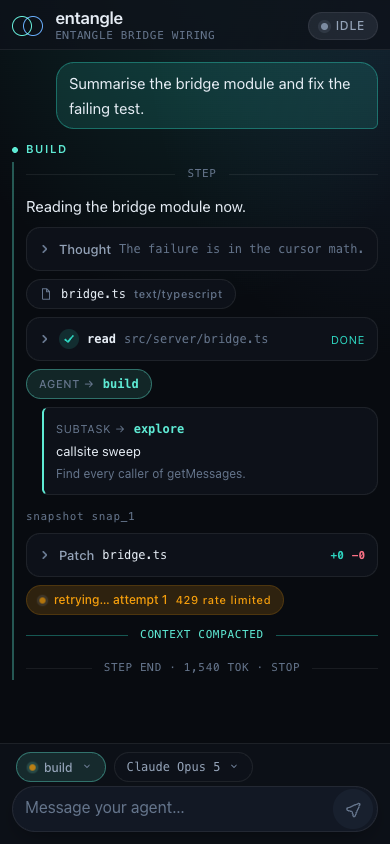
An opencode plugin to mobile-control a running opencode session. Run the CLI, scan the QR code, and continue the same conversation from your phone over trusted Wi-Fi or Tailscale.
Install
bunx @dualityinstitute/entangle@latest install
The installer adds the entangle command globally and registers the plugin in your existing OpenCode configuration without replacing unrelated settings. Restart OpenCode afterward. Entangle is currently verified against OpenCode 1.18.18.
Local access
Keep opencode running, then open another terminal in the same project:
entangle
When the project has more than one chat, entangle asks which to pair:
Chats in ~/code/my-project:

  1  Redesign the session picker   just now
  2  Fix typing inbox bug          18m ago
  3  Greeting                      3h ago

Pair with [1-3]:
Scan the QR code with your phone. Both devices must be on the same trusted Wi-Fi network.
Your phone controls exactly the chat you chose. It cannot switch chats. To control a different conversation, run entangle again and scan the new QR code. A chat does not need to be open in a TUI window to be paired.
The mobile UI supports streaming chat, agent and model selection, aborting a turn, and permission approval.
Remote access
Install Tailscale on the computer running OpenCode and on your phone, sign both into the same tailnet, and keep Tailscale connected. Then run:
entangle --remote
Scan the resulting QR as usual. The phone may be on cellular or a different Wi-Fi network. Entangle discovers the computer's private Tailscale IPv4, allows that address for this server run, and puts it in the pairing URL. It does not change your Tailscale configuration or use Tailscale Funnel.
Command Reference
| Command | Purpose |
|---|---|
entangle install |
One-time bootstrap; normally run via bunx |
entangle |
Choose a chat, then print a QR code and pairing URL |
entangle --session ID |
Pair a specific chat without prompting |
entangle --remote |
Pair privately from another network via Tailscale |
entangle --json |
Print only the pairing URL as JSON |
entangle --list |
List running opencode instances |
entangle --list --json |
List instances as JSON |
entangle --help |
Show CLI help |
install is a one-time bootstrap run through bunx at installation. For normal user, just run the bunx command above for full installation, and you do not need to run entangle install.
Security
Entangle does not run a cloud relay or expose a public endpoint. Pairing links are single-use and expire after five minutes by default. Sessions use an HttpOnly cookie, CSRF protection, rate limiting, host validation, and restrictive response headers.
Traffic in LAN mode is plain HTTP and is not encrypted. Use it only on networks you trust. In Tailscale mode the URL remains HTTP, but its packets travel inside Tailscale's encrypted WireGuard tunnel and are limited by your tailnet policy. Guest Wi-Fi may block LAN device-to-device traffic; Tailscale mode does not require local LAN reachability.
Other
Restarting opencode clears paired sessions and requires a new QR code.
Local setup, testing, and release instructions are in DEVELOPMENT.md.
Similar plugins

Pocketpilot
pocketpilot
Control any opencode session from your phone: scan a QR, send prompts, watch answers live, approve permissions, and get push alerts.

With Claude
opencode-with-claude
OpenCode plugin to use your Claude Max subscription via Meridian proxy

Goal
opencode-goal-plugin
Durable, guarded goal workflows for OpenCode.