
2
226
近 7 天 22
38.1
生态多维模型
12 天前
2026-08-08
快速安装与配置
opencode.json写入当前项目的 opencode.json,只对这个仓库生效。
opencode.json
{
  "$schema": "https://opencode.ai/config.json",
  "plugin": ["@yuting4281/opencode-usage-plugin@0.2.0"]
}
写入 ~/.config/opencode/opencode.json,对所有项目生效。
~/.config/opencode/opencode.json
{
  "$schema": "https://opencode.ai/config.json",
  "plugin": ["@yuting4281/opencode-usage-plugin@0.2.0"]
}
若你要在本地改造这个插件,先装到项目里再从本地路径引用。
shell
pnpm add -D @yuting4281/opencode-usage-pluginopencode 启动时会通过内嵌运行时自动加载 npm 依赖并缓存至本地目录,无需手动在全局环境执行安装。
OpenCode TUI plugin that shows your AI provider usage quota directly inside OpenCode.
Auto-detects available providers. Auto-refreshes every 60 seconds.
Supported providers
| Provider | Auth source | What it shows |
|---|---|---|
| GitHub Copilot | ~/.local/share/opencode/auth.json |
Premium interactions remaining %, plan type, reset date |
| Kiro | ~/.config/opencode/kiro.db |
Usage / limit per account |
| Codex (OpenAI) | ~/.local/share/opencode/auth.json |
Weekly usage %, plan type, reset countdown |
| NVIDIA (build.nvidia.com) | ~/.local/share/opencode/auth.json + opencode.db |
Local estimate: requests made today from this machine vs. an assumed daily limit, recent requests/min |
Note on NVIDIA: NVIDIA offers no usage API, so this row is a local estimate — it counts today's requests (local midnight reset) made through OpenCode on this machine against an assumed daily limit of 1,000 (adjustable via
nvidia_daily_limit).
What you get
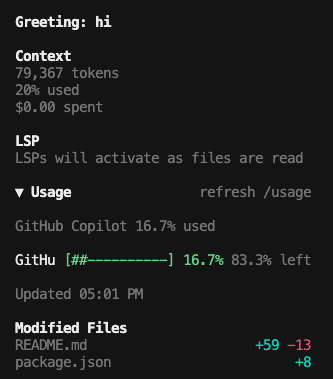
- Collapsible usage panel on the home screen
- Collapsible usage panel in the session sidebar
/usagecommand for a full-screen detailed view/usage-refreshcommand to manually refresh- Color-coded progress bars (green → yellow → red as quota decreases)
- Quota reset time on the same row as the progress bar, shown as local
MM/DD HH:mm(providers that expose no reset time simply omit it)
Requirements
- OpenCode >= 1.3.13
- Node.js >= 22
Setup
This is a TUI-only plugin.
- Add it to
~/.config/opencode/tui.json - Do not add it to
~/.config/opencode/config.json - Restart OpenCode fully after changing the config
Load from npm package
If the package is available from npm, add this to ~/.config/opencode/tui.json:
{
  "$schema": "https://opencode.ai/tui.json",
  "plugin": [
    "@yuting4281/opencode-usage-plugin"
  ]
}
You usually do not need to run npm install manually for the TUI plugin itself. OpenCode reads the package name from tui.json and resolves/installs it through its own plugin system.
Use the package name only. Do not use @yuting4281/opencode-usage-plugin/tui in tui.json.
When installed from npm, OpenCode resolves the package's ./tui export automatically. Users only need the package name in tui.json.
Use a local checkout
For local development or if you cloned this repo directly, point tui.json at the plugin file:
{
  "$schema": "https://opencode.ai/tui.json",
  "plugin": [
    "/absolute/path/to/opencode-usage-plugin/tui.tsx"
  ]
}
Using an absolute path is the most reliable option for local installs.
Optional helper command
The plugin works without this. Install it only if you want the opencode-auth-usage command on your PATH.
npm install -g @yuting4281/opencode-usage-plugin
Or install from GitHub:
npm install -g github:fdsf53451001/opencode-usage-plugin
The plugin automatically detects which providers are available and only shows the ones you have configured. No extra setup needed.
Prefer running connectors in a subprocess?
Most users do not need this. If you want to force the plugin to use opencode-auth-usage, configure the same plugin spec with options:
{
  "$schema": "https://opencode.ai/tui.json",
  "plugin": [
    [
      "@yuting4281/opencode-usage-plugin",
      { "command": "opencode-auth-usage" }
    ]
  ]
}
If you are loading the plugin from a local checkout, replace "@yuting4281/opencode-usage-plugin" with the same absolute tui.tsx path you used above.
Options
Pass as the second element of the plugin tuple:
| Option | Default | Description |
|---|---|---|
command |
— | Run an external command instead of built-in connectors |
cwd |
— | Working directory for the external command |
interval_ms |
60000 |
Auto-refresh interval (ms) |
timeout_ms |
8000 |
Command timeout (ms) |
max_items |
4 |
Max rows shown in compact panels |
title |
Usage |
Panel title |
show_home |
true |
Show panel on home screen |
show_sidebar |
true |
Show panel in session sidebar |
nvidia_daily_limit |
1000 |
Assumed NVIDIA daily request limit for the local usage estimate |
Troubleshooting
- If the panel does not appear, make sure the plugin is only configured in
tui.json - For a local checkout, prefer an absolute path to
tui.tsx - After changing config, fully quit and reopen OpenCode
- Check the latest log in
~/.local/share/opencode/log/forservice=tui.pluginerrors - If the plugin is loaded, you should see the
Usagepanel and the/usagecommand - If the NVIDIA row is missing, make sure
auth.jsonhas annvidiaentry (set up viaopencode auth login)
Environment variables
| Variable | Default | Description |
|---|---|---|
OPENCODE_AUTH_PATH |
~/.local/share/opencode/auth.json |
Custom OpenCode auth file path |
OPENCODE_KIRO_DB_PATH |
~/.config/opencode/kiro.db |
Custom Kiro database path |
OPENCODE_DB_PATH |
~/.local/share/opencode/opencode.db |
Custom OpenCode database path (CLI, used for the NVIDIA estimate) |
OPENCODE_NVIDIA_DAILY_LIMIT |
1000 |
Assumed NVIDIA daily request limit (CLI equivalent of nvidia_daily_limit) |