
opencode-qPrompt queue plugin for OpenCode
2
41
近 7 天 7
29.8
生态多维模型
2 个月前
2026-06-02
快速安装与配置
opencode.json写入当前项目的 opencode.json,只对这个仓库生效。
opencode.json
{
  "$schema": "https://opencode.ai/config.json",
  "plugin": ["opencode-q@1.1.4"]
}
写入 ~/.config/opencode/opencode.json,对所有项目生效。
~/.config/opencode/opencode.json
{
  "$schema": "https://opencode.ai/config.json",
  "plugin": ["opencode-q@1.1.4"]
}
若你要在本地改造这个插件,先装到项目里再从本地路径引用。
shell
pnpm add -D opencode-qopencode 启动时会通过内嵌运行时自动加载 npm 依赖并缓存至本地目录,无需手动在全局环境执行安装。
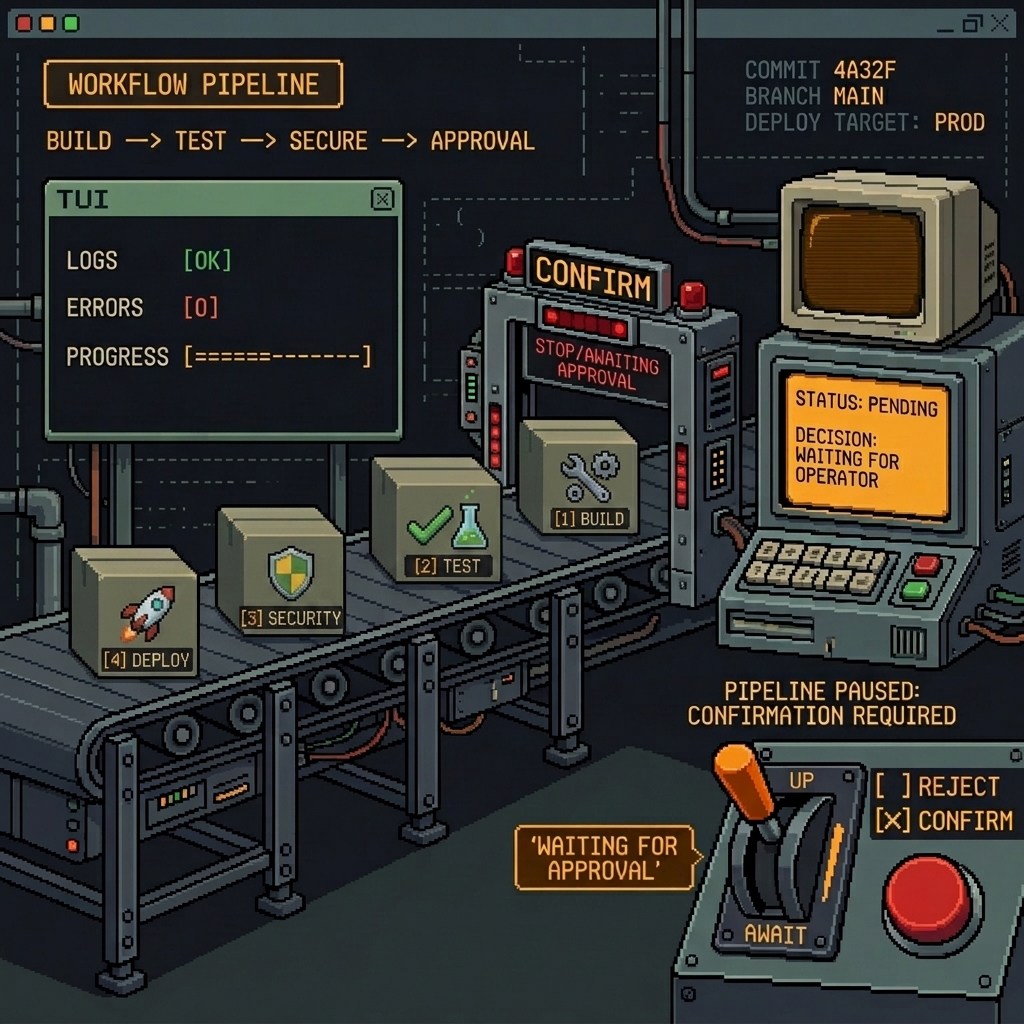
Prompt queue plugin for OpenCode — run OpenCode, open http://localhost:4321, and manage a per-session prompt queue like a todo list: stage prompts ahead of time and send them to the AI one at a time, with live status tracking.
What it does
opencode-q is a web-only OpenCode plugin. There is no CLI and there are no TUI commands — you drive everything from one web UI.
- One web UI for every project at
http://localhost:4321— all running OpenCode instances show up in one place. - Per-project, per-session queues — each conversation (session) has its own independent queue.
- Todo-style status tracking — every item moves through
queued → pending → sent → done(orfailed). - Manual, one at a time — you send a queued prompt explicitly; the next one is sent only after the previous finishes. You stay in control.
- Reorder, edit, delete queued items; resend failed ones.
- Robust by design — all state lives on disk, so the system keeps working even as OpenCode windows open and close.
Installation
Prerequisites
npm
npm install -g opencode-q
The plugin auto-installs to ~/.config/opencode/plugins/ via a postinstall step. Restart OpenCode and it works.
Note: Global install (
-g) is required because the plugin registers globally at~/.config/opencode/plugins/. Per-project install is not supported.
Usage
- Start OpenCode in any project (start it in several projects if you like).
- Open
http://localhost:4321in your browser. - In the sidebar, pick a project; pick a session tab; then:
- Add a prompt — it appears as
queued. - Send a queued prompt — it goes to
pending, thensentwhile the AI works, thendonewhen the AI finishes. Send is disabled while an item is in flight, so prompts never overlap. - Reorder (drag), edit, or delete queued items.
- If an item ends up
failed, click resend.
- Add a prompt — it appears as
Projects whose OpenCode instance is no longer running are shown as offline (greyed out); their queues are preserved for when you restart.
Web UI at a glance
| Element | Purpose |
|---|---|
| Sidebar | All running projects (offline ones greyed) |
| Session tabs | Switch between a project's sessions |
| Status badge | queued / pending / sent / done / failed per item |
| Send / Resend | Dispatch a queued item, or retry a failed one (one at a time per session) |
The web server starts automatically when the plugin loads. It always listens on port 4321.
Troubleshooting
- Make sure at least one OpenCode instance is running — the web UI is served by the plugin, so
http://localhost:4321is only available while OpenCode is open. - If the page does not load, confirm nothing else on your machine is already using port
4321. - Found a bug? Please open a GitHub Issue with steps to reproduce — it helps a lot.
Architecture
opencode-q uses disk as the single source of truth. Each OpenCode instance loads the plugin; whichever instance grabs port 4321 serves the (stateless) web UI, and every instance executes the queued prompts for its own sessions. There are no cross-process network callbacks, so any instance can come and go without breaking the others.
For development setup and details, see CONTRIBUTING.md.
License
MIT