
@semirhuduti/opencode-tts-voiceKokoro voice output plugin for OpenCode with TUI shortcuts
3
453
83 in 7 days
35.8
Multi-signal model
3 months ago
2026-05-08
Install and configure
opencode.jsonWrites to this project's opencode.json — applies to this repository only.
opencode.json
{
  "$schema": "https://opencode.ai/config.json",
  "plugin": ["@semirhuduti/opencode-tts-voice@0.6.0"]
}
Writes to ~/.config/opencode/opencode.json — applies to every project.
~/.config/opencode/opencode.json
{
  "$schema": "https://opencode.ai/config.json",
  "plugin": ["@semirhuduti/opencode-tts-voice@0.6.0"]
}
If you want to modify the plugin locally, install it into the project and reference the local path.
shell
pnpm add -D @semirhuduti/opencode-tts-voiceopencode loads npm dependencies through its embedded runtime on startup and caches them locally — no manual global install needed.
Voice output plugin for OpenCode powered by Kokoro, with TUI shortcut support for controlling playback.

ALFA
Still wip, make sure to install sharp versions if you want a bit more reliability.
Features
- reads assistant responses aloud while they stream in the TUI
- speaks question tool prompts from the active visible session
- adds TUI shortcuts for pause, history replay, replay latest response, and toggle on or off
- supports configurable voice, speed, model, precision, and playback settings
- uses local playback via
mpv,ffplay,paplay, oraplay - prefers GPU-capable execution when available and falls back to CPU automatically
Requirements
- Linux, macOS, or Windows
- OpenCode with plugin support
- one of
mpv,ffplay,paplay, oraplayavailable on the system.mpvis recommended.
Optional:
- CUDA and cuDNN runtime libraries for GPU execution
Install
opencode plugin @semirhuduti/opencode-tts-voice --global
OpenCode loads the package automatically.
This package exposes a TUI plugin entrypoint and runs inside the OpenCode terminal UI.
Speech generation runs in a persistent helper service process so Kokoro/ONNX work and WAV encoding do not block the TUI event loop. Because it is a separate operating-system process, you can lower or cap only speech generation without limiting OpenCode itself.
Spoken-Friendly System Prompt
This package includes built-in system prompt guidance that helps agents write responses that are easier to understand through speech playback. The runtime sanitizer still cleans up streamed text before playback, but the system prompt improves the source response by encouraging spoken-friendly prose instead of visually dense formatting.
There is no separate skill to install. The server plugin adds the guidance directly to each session's system prompt when speech is enabled. Add the package to your OpenCode plugin config if you want automatic spoken-friendly response guidance:
{
  "plugin": ["@semirhuduti/opencode-tts-voice"]
}
Keep the TUI config shown below for the voice playback UI and shortcuts.
The injected system prompt also instructs agents to use OpenCode's ask question tool when they need information from you, one question per tool call, so question prompts can be spoken reliably.
Config
Example ~/.config/opencode/tui.json:
{
  "$schema": "https://opencode.ai/tui.json",
  "plugin": [
    [
      "@semirhuduti/opencode-tts-voice",
      {
        "voice": "am_adam",
        "speed": 1.1,
        "dtype": "q4",
        "speechBlocks": ["message", "idle"],
        "shortcuts": {
          "history": "f5",
          "pause": "f6",
          "skipLatest": "f7",
          "toggle": "f8"
        }
      }
    ]
  ]
}
The plugin works with defaults, so the shortcuts block is optional unless you want custom keybinds.
If you install locally, OpenCode may write the plugin entry into your project .opencode/tui.json instead.
Options
| Option | Type | Default | Description |
|---|---|---|---|
voice |
string | af_heart |
Voice ID used for speech generation. |
speed |
number | 1 |
Speech speed. Higher values are faster. |
device |
string | auto |
Preferred execution device. Accepted values: auto, cpu, cuda, dml, gpu, wasm, webgpu. The plugin falls back to CPU automatically if the preferred backend cannot initialize. |
dtype |
string | q8 |
Model precision. Accepted values: fp32, fp16, q4, q4f16, q8. |
model |
string | onnx-community/Kokoro-82M-v1.0-ONNX |
Model ID or compatible local model path. |
cacheDir |
string | Transformers.js default cache | Directory used for model downloads and cache data. |
audioPlayer |
string | auto |
Playback backend command. auto picks the first installed backend from ffplay, mpv, paplay, or aplay. mpv is recommended. |
audioPlayerArgs |
string or string[] | [] |
Additional arguments passed to the playback backend helper. |
speakResponses |
boolean | true |
Speak streamed assistant responses. |
speakSubagentResponses |
boolean | false |
Speak responses from subagent child sessions. Disabled by default so only the main agent is spoken. |
speakOnIdle |
boolean | false |
Speak a message when the session becomes idle. |
speakQuestions |
boolean | true |
Speak question tool prompts when they are asked in the active session. |
idleAnnouncement |
string | Task completed. |
Idle announcement text. |
speechBlocks |
string[] | ["message", "idle"] |
Fine-grained speech source filter. Accepted values: reason, message, idle. Reasoning is opt-in. |
maxSpeechChunkChars |
number | 1000 |
Maximum chunk size sent to the TTS generator. |
streamFlushChars |
number | 180 |
Target flush size for streamed assistant text. |
maxSpeechChars |
number | 2000 |
Maximum text length accepted for a single spoken chunk. |
fileExtensions |
string or string[] | [] |
Additional alphanumeric file extensions recognized by speech sanitization. Extends the built-in list. |
trimSilenceThreshold |
number | 0.001 |
Silence threshold used when trimming generated chunks. |
leadingAudioPadMs |
number | 12 |
Leading padding preserved before detected speech. |
normalPauseMs |
number | 240 |
Pause added after normal chunks. |
sentencePauseMs |
number | 420 |
Pause added after sentence, clause, or newline-ending chunks. |
ttsServiceCommand |
string | Resolved Node or Bun runtime | Optional command used to start the TTS helper service. Use this only when wrapping the helper with OS resource controls. |
ttsServiceArgs |
string or string[] | ['{helper}'] |
Optional helper service arguments. {helper} expands to the bundled helper script, and {runtime} expands to the Node or Bun executable used for the helper. |
shortcuts.history |
string | f5 |
TUI shortcut for opening the previous assistant message picker. Enter plays the selected message, and shift return plays from the selected message forward. |
shortcuts.pause |
string | f6 |
TUI shortcut for play or pause. If audio is already playing, it pauses. If playback is idle, it replays the latest assistant response. |
shortcuts.skipLatest |
string | f7 |
TUI shortcut for replaying the latest assistant message in the active session. |
shortcuts.toggle |
string | f8 |
TUI shortcut for enabling or disabling automatic speech. |
Limiting TTS CPU Usage
The plugin starts Kokoro generation in a child service process. By default it launches the bundled helper directly. To apply operating-system limits to only speech generation, set ttsServiceCommand and ttsServiceArgs to wrap that helper process.
The {helper} placeholder means the bundled helper script. The {runtime} placeholder means the Node or Bun executable used to run that helper. The older {node} placeholder is still accepted as an alias for {runtime}.
Soft priority example with nice. This makes TTS yield CPU time more readily, but it is not a hard CPU cap:
{
  "plugin": [
    [
      "@semirhuduti/opencode-tts-voice",
      {
        "ttsServiceCommand": "nice",
        "ttsServiceArgs": ["-n", "10", "{runtime}", "{helper}"]
      }
    ]
  ]
}
CPU affinity example with taskset. This confines TTS to one CPU core, but it does not cap usage on that core:
{
  "plugin": [
    [
      "@semirhuduti/opencode-tts-voice",
      {
        "ttsServiceCommand": "taskset",
        "ttsServiceArgs": ["-c", "0", "{runtime}", "{helper}"]
      }
    ]
  ]
}
Hard CPU cap example with cpulimit. This limits the helper service to about 50 percent of one CPU core:
{
  "plugin": [
    [
      "@semirhuduti/opencode-tts-voice",
      {
        "ttsServiceCommand": "cpulimit",
        "ttsServiceArgs": ["--limit", "50", "--", "{runtime}", "{helper}"]
      }
    ]
  ]
}
Hard CPU cap example with systemd-run. This starts the helper under a transient user unit with a 50 percent CPU quota:
{
  "plugin": [
    [
      "@semirhuduti/opencode-tts-voice",
      {
        "ttsServiceCommand": "systemd-run",
        "ttsServiceArgs": [
          "--user",
          "--scope",
          "--quiet",
          "-p",
          "CPUQuota=50%",
          "{runtime}",
          "{helper}"
        ]
      }
    ]
  ]
}
You can use the same command and arguments in a user systemd service if you prefer a named, reusable unit. The important point is that only the helper service process is wrapped; the OpenCode TUI process remains unrestricted.
Logging
Runtime logging defaults to warnings and errors only to avoid terminal redraw pressure in the TUI. Enabled logs are also written beside OpenCode's own logs at ${XDG_DATA_HOME:-~/.local/share}/opencode/log/opencode-tts-voice-<timestamp>.log. Set OPENCODE_TTS_VOICE_LOG_LEVEL=debug or info when diagnosing plugin behavior. Helper process logs are silent by default because stdout is used for the helper protocol; set OPENCODE_TTS_VOICE_HELPER_LOG_LEVEL=warn or error only when debugging helper startup failures.
Shortcuts
Default TUI shortcuts:
f5: open previous assistant message pickerf6: play or pause speechf7: replay the latest assistant messagef8: enable or disable speech
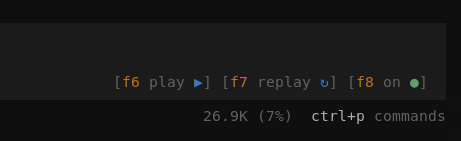
When the TUI entrypoint is active, the plugin also renders compact shortcut chips near the chat prompt. Each chip uses [hotkey hint icon] order and only shows controls that are useful for the current state:
[f8 off ○]when speech is disabled and no playable history exists[f8 off ○] [f5 history ◷]when speech is disabled and playable history exists[f6 play ▶] [f5 history ◷] [f7 replay ↻] [f8 on ●]when speech is enabled, idle, and playable history exists⠋ [f6 pause Ⅱ] [f5 history ◷] [f8 on ●]while audio is generating and playable history exists, with the spinner animated and nogeneratingtext[f6 pause Ⅱ] [f5 history ◷] [f8 on ●]while audio is playing and playable history exists[f6 play ▶] [f5 history ◷] [f7 replay ↻] [f8 on ●]while paused and playable history exists[! error] [f8 on ●]or[! error] [f8 off ○]after a playback error- shortcut keys are orange
- action icons are blue, except the toggle icon which is green for
onand gray foroff
The history picker lists up to 50 recent playable assistant messages from the active session. Press Enter to play only the selected message, shift+return to play the selected message and later playable assistant messages, or Escape to close the picker.
speechBlocks works as a source filter on top of the speech toggles:
speakResponsesenables or disables streamed response playbackspeakSubagentResponsesenables or disables speech from subagent child sessionsspeakOnIdleenables or disables idle announcementsspeakQuestionsenables or disables question tool prompt playback for the active session onlyspeechBlocksdecides which ofreason,message, andidleare allowed to be spoken when those features are active
Question prompt speech reads only the question text. It does not read answer options, descriptions, multi-select hints, or custom-answer instructions. Questions are governed by the global speech toggle and pause state, never spoken for subagent sessions, and queued behind any current playback.
Removed alpha option names are not accepted as aliases. Replace playerBin with audioPlayer, playerArgs with audioPlayerArgs, readResponses with speakResponses, readSubagentResponses with speakSubagentResponses, announceOnIdle with speakOnIdle, idleMessage with idleAnnouncement, voiceBlocks with speechBlocks, speechChunkLength with maxSpeechChunkChars, streamSoftLimit with streamFlushChars, maxTextLength with maxSpeechChars, defaultChunkPauseMs with normalPauseMs, and clauseChunkPauseMs with sentencePauseMs.
Publish Notes
Published package entrypoints:
./tui: TUI plugin entrypoint for OpenCode terminal UI
This package is intended to be published as a public scoped npm package.
Playback Backends
Supported backends:
auto(default)mpvffplaypaplayaplay
Example backend override:
{
  "$schema": "https://opencode.ai/tui.json",
  "plugin": [
    [
      "@semirhuduti/opencode-tts-voice",
      {
        "audioPlayer": "mpv",
        "audioPlayerArgs": ["--volume=70"]
      }
    ]
  ]
}
Voices
The plugin accepts Kokoro voice IDs. Common English voices include:
af_heartaf_alloyaf_aoedeaf_bellaaf_jessicaaf_koreaf_nicoleaf_novaaf_riveraf_sarahaf_skyam_adamam_echoam_ericam_fenriram_liamam_michaelam_onyxam_puckam_santabf_alicebf_emmabf_isabellabf_lilybm_danielbm_fablebm_georgebm_lewis
kokoro-js ships additional voices beyond this list. If upstream adds new voices, you can usually use them directly through the voice option.