
opencode-session-elapsedOpenCode TUI plugin that shows session elapsed, cumulative work, and response timers in the prompt line.
0
28
28 in 7 days
29.0
Multi-signal model
6 days ago
2026-08-14
Install and configure
opencode.jsonWrites to this project's opencode.json — applies to this repository only.
opencode.json
{
  "$schema": "https://opencode.ai/config.json",
  "plugin": ["opencode-session-elapsed@0.1.3"]
}
Writes to ~/.config/opencode/opencode.json — applies to every project.
~/.config/opencode/opencode.json
{
  "$schema": "https://opencode.ai/config.json",
  "plugin": ["opencode-session-elapsed@0.1.3"]
}
If you want to modify the plugin locally, install it into the project and reference the local path.
shell
pnpm add -D opencode-session-elapsedopencode loads npm dependencies through its embedded runtime on startup and caches them locally — no manual global install needed.
A OpenCode TUI plugin that shows live timers in the prompt line:
- ◷ Session elapsed: how long the current session has been open
- ⚙ Work time: total time the assistant has been generating (cumulative across the session)
- ⚡ Response time: time for the current/last response (live while generating, then finalized)
◷ 2h 3m ⚙ 1h 12m ✓ 45s
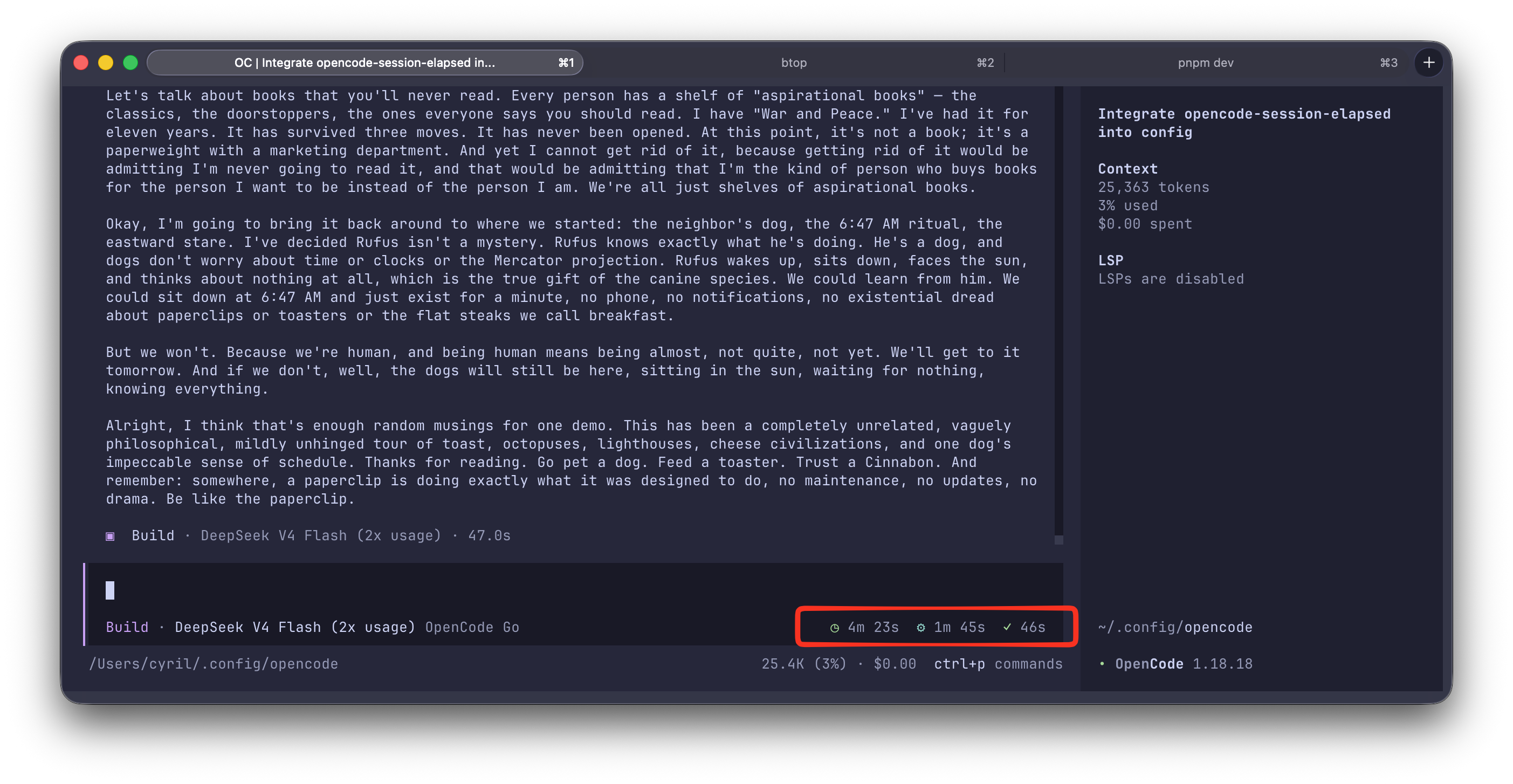
All timers are optional, configurable, and safe to keep on: they disappear automatically when there is nothing to show.
Requirements
- OpenCode ≥ 1.18.0 (TUI mode)
- macOS / Linux / Windows
Install
From npm
Add the plugin to the TUI config in ~/.config/opencode/tui.json:
{
  "$schema": "https://opencode.ai/tui.json",
  "plugin": ["opencode-session-elapsed"]
}
Restart OpenCode. Done: you'll see the timers in the prompt line.
From source
Clone the repo and reference the plugin file directly:
git clone https://github.com/siriscmv/opencode-session-elapsed.git
{
  "$schema": "https://opencode.ai/tui.json",
  "plugin": ["file:///path/to/opencode-session-elapsed/src/index.tsx"]
}
Restart OpenCode. Done: you'll see the timers in the prompt line.
Configure
Pass options as a tuple entry. All options are optional; defaults are shown below.
{
  "plugin": [
    [
      "opencode-session-elapsed",
      {
        "timers": { "session": true, "work": true, "response": true },
        "format": "compact",
        "icons": true,
        "slot": "session_prompt_right",
        "order": 200,
        "refreshMs": 1000,
        "colors": {
          "session": "#22c55e",
          "work": "#3b82f6",
          "response": "#f59e0b",
          "responseDone": "#22c55e"
        }
      }
    ]
  ]
}
Options
| Option | Type | Default | Description |
|---|---|---|---|
timers |
{ session?, work?, response? } |
all true |
Toggle each timer independently. |
format |
"compact" | "full" |
"compact" |
compact → 1h 5m, full → 1:05:33 (clock-style, zero-padded). |
icons |
boolean |
true |
Show the ◷ ⚙ ⚡ ✓ glyphs. |
slot |
"session_prompt_right" | "home_prompt_right" | "sidebar_footer" | "app_bottom" |
"session_prompt_right" |
Which part of the TUI the timers render in. |
order |
number |
200 |
Slot ordering relative to other plugins. Lower renders first. |
refreshMs |
number |
1000 |
Update interval in milliseconds (minimum 250). |
colors |
{ session?, work?, response?, responseDone? } |
theme colors | Hex color overrides (e.g. #22c55e) for each timer's icon. |
Examples
Only the session timer, clock format, in the sidebar footer:
{
  "plugin": [
    [
      "opencode-session-elapsed",
      { "timers": { "session": true, "work": false, "response": false }, "format": "full", "slot": "sidebar_footer" }
    ]
  ]
}
Minimal, no icons:
{
  "plugin": [["opencode-session-elapsed", { "icons": false }]]
}
How it works
The plugin subscribes to TUI session state and ticks a 1s timer:
- Session elapsed: now minus the session's
time.created. - Work time: sums
assistant.time.completed - assistant.time.createdover every assistant message; the in-progress message is counted live while the session is busy. - Response time: time from the last user message to the last assistant message completion (or the live elapsed time while still generating).
Development
bun install
bun run typecheck   # TypeScript checks
bun test            # unit tests (formatting)
bun run build       # bundle to dist/ (run before publishing)
License
MIT © Siris